Choosing a new laptop can feel overwhelming with all the technical jargon and endless options. This guide cuts through the noise, breaking down the process into simple, practical steps. We'll help you figure out what you actually need, so you can find the perfect machine for your tasks and budget without overspending on features you'll never use. Follow this guide to make a confident, informed decision before you click checkout.
Fast Answer
- Primary Use: Decide your main tasks (work, study, gaming).
- Budget: Set a realistic spending limit before you browse.
- Operating System: Choose between Windows, macOS, and ChromeOS.
- Key Specs: Prioritise a modern CPU, at least 8GB of RAM, and an SSD.
Before You Start
- Define your purpose: Make a short list of the 3-5 most frequent tasks you will do on the laptop (e.g., writing essays, editing photos, streaming films, browsing the web).
- Establish your budget: Decide on a firm maximum price you are willing to pay. This will immediately narrow your options and prevent overspending.
- List your must-haves: Note any non-negotiable features, such as a backlit keyboard, a specific number of USB ports, or a lightweight design for travel.
Step-by-Step Instructions
Define Your Primary Use Case
The first and most important step is to be honest about what you'll use the laptop for. This single decision influences every other choice. Avoid the trap of buying a powerful machine "just in case." Be realistic to get the best value.
- Everyday Use (Web Browsing, Email, Streaming): If your tasks are mainly in a web browser, you don't need a powerhouse. A Chromebook or an entry-level Windows laptop will be fast, efficient, and affordable.
- Student/Academic Work: Your priorities are likely portability, a comfortable keyboard for typing long essays, and long battery life to last through lectures. A lightweight 13- or 14-inch model is often ideal.
- Professional/Business Use: For demanding office software, heavy multitasking with dozens of browser tabs, and video conferencing, you'll want a bit more power. Look for a laptop with a modern processor (Intel Core i5/AMD Ryzen 5 or better) and more memory (16GB RAM).
- Creative Work (Photo/Video Editing, Design): These tasks require significant power. Prioritise a powerful processor (Core i7/Ryzen 7), a dedicated graphics card (GPU), plenty of RAM (16GB minimum), and a high-resolution, colour-accurate screen.
- Gaming: This is the most demanding category. You will need a top-tier processor and, crucially, a powerful dedicated graphics card from NVIDIA (GeForce RTX series) or AMD (Radeon RX series). A screen with a high refresh rate (120Hz or more) is also essential for smooth gameplay.
Set Your Budget Realistically
Your budget is the most effective tool for narrowing down your choices. Laptops in the UK generally fall into a few key price brackets, each offering a different level of performance and features.
- Under £400 (Entry-Level): This range is dominated by Chromebooks and basic Windows laptops. They are perfect for light tasks like web browsing, writing documents, and watching videos. Expect plastic builds and basic screens, but perfectly usable performance for simple needs.
- £400 - £700 (Mid-Range): This is the sweet spot for most users, including students and home office workers. You'll find laptops with better build quality, faster processors (Core i5/Ryzen 5), more RAM (8GB is standard here), and faster storage (SSDs). They offer a great balance of price and performance.
- £700 - £1,200 (Upper Mid-Range): Here you'll find thin-and-light "ultrabooks," entry-level gaming laptops, and MacBooks. Expect premium materials like aluminium, sharper screens, faster performance for more demanding tasks, and features like backlit keyboards and better speakers.
- £1,200+ (Premium & High-End): This is the territory of high-performance gaming rigs, professional creative workstations, and top-of-the-line MacBooks. These machines are built for the most demanding tasks and offer the best screens, fastest components, and superior build quality.
Remember to factor in the potential cost of essential software like Microsoft 365 or accessories like a mouse, laptop bag, or external monitor.
Choose Your Operating System (OS)
The operating system is the core software that manages your laptop. Your choice will be between Windows, macOS, and ChromeOS, and it often comes down to personal preference and what you're already used to.
- Windows: This is the most popular OS in the world. It runs on the widest variety of laptops from countless manufacturers (Dell, HP, Lenovo, Acer, etc.) and is compatible with the largest library of software and games. It's flexible, familiar to most people, and offers options at every price point.
- macOS: Found exclusively on Apple's MacBook Air and MacBook Pro laptops. It's renowned for its clean, intuitive design, strong security features, and excellent integration with other Apple devices like the iPhone and iPad. MacBooks are generally considered premium products with a higher starting price.
- ChromeOS: This is Google's simple, secure, web-focused OS, found on laptops called Chromebooks. They are designed for online tasks, boot up in seconds, and have long battery life. They are an excellent, affordable choice if most of your work happens in a web browser, using Google Docs, or streaming content. They can also run Android apps.
Decode the Core Specifications
The spec sheet can look like a foreign language, but you only need to focus on four key components that determine the laptop's performance.
- Processor (CPU): The Brain. This is the engine of the laptop. The two main brands are Intel and AMD.
- For Intel, look for Core i3 (basic tasks), Core i5 (great for general use), Core i7 (for demanding tasks), and Core i9 (top-tier professional performance).
- For AMD, the equivalent tiers are Ryzen 3, Ryzen 5, Ryzen 7, and Ryzen 9.
- For most people, a Core i5 or Ryzen 5 is the perfect balance of price and performance.
- RAM (Memory): The Workspace. RAM is short-term memory that lets you run multiple applications at once. The more RAM you have, the more browser tabs and programs you can have open without the system slowing down.
- 8GB: This is the absolute minimum you should accept in a new laptop. It's sufficient for everyday multitasking.
- 16GB: This is the new sweet spot. It provides a much smoother experience, especially if you have many tabs open, and helps future-proof your machine.
- 32GB or more: Only necessary for professional video editing, complex engineering software, or high-end gaming.
- Storage (SSD): The Filing Cabinet. This is where all your files, applications, and the OS are stored.
- Insist on a Solid State Drive (SSD). They are dramatically faster than old-fashioned Hard Disk Drives (HDDs), making your laptop boot up in seconds and launch apps instantly. Do not buy a laptop with an HDD as its primary drive.
- 256GB: The minimum capacity. It can fill up quickly if you store lots of photos or large applications.
- 512GB: A comfortable amount for most users, providing ample space for programs and files.
- 1TB (Terabyte) or more: Recommended for gamers, video editors, or anyone who works with very large files.
- Graphics (GPU): The Visual Artist. This component handles everything you see on the screen.
- Integrated Graphics: Built into the CPU, these are fine for all non-gaming tasks, including streaming 4K video and light photo editing.
- Dedicated Graphics: A separate, powerful chip from NVIDIA or AMD. This is essential for serious PC gaming or demanding creative work like video rendering and 3D modelling.
Assess the Physical Features
The best specs in the world don't matter if the laptop is a pain to use every day. Pay close attention to the parts you interact with directly.
- Screen: You'll be staring at this for hours, so make it a good one.
- Size: 13-14 inches is great for portability. 15-16 inches is a popular all-rounder. 17 inches and up are best as desktop replacements that rarely move.
- Resolution: Look for Full HD (1920 x 1080 pixels) as the standard. Anything less will look blurry on a modern laptop. QHD or 4K resolutions are sharper but drain the battery faster.
- Brightness: Aim for a screen with 300 nits of brightness or more. This makes it much easier to see in a brightly lit room or near a window.
- Keyboard and Touchpad: If you type a lot, a good keyboard is vital. If possible, try typing on a display model in a store like Currys or John Lewis. Check for comfortable key spacing, decent "travel" (how far the key presses down), and whether it has a backlight for typing in low light.
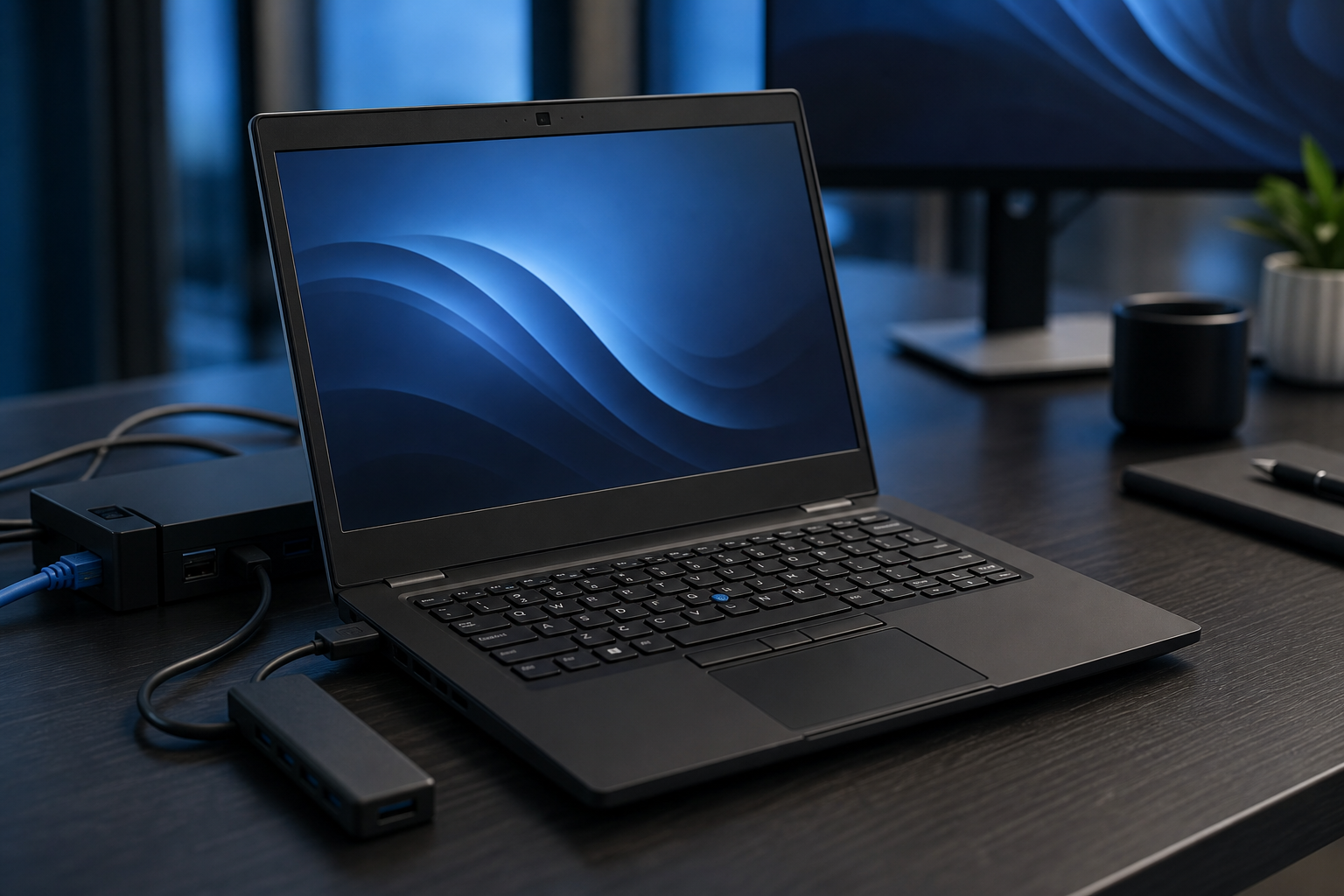
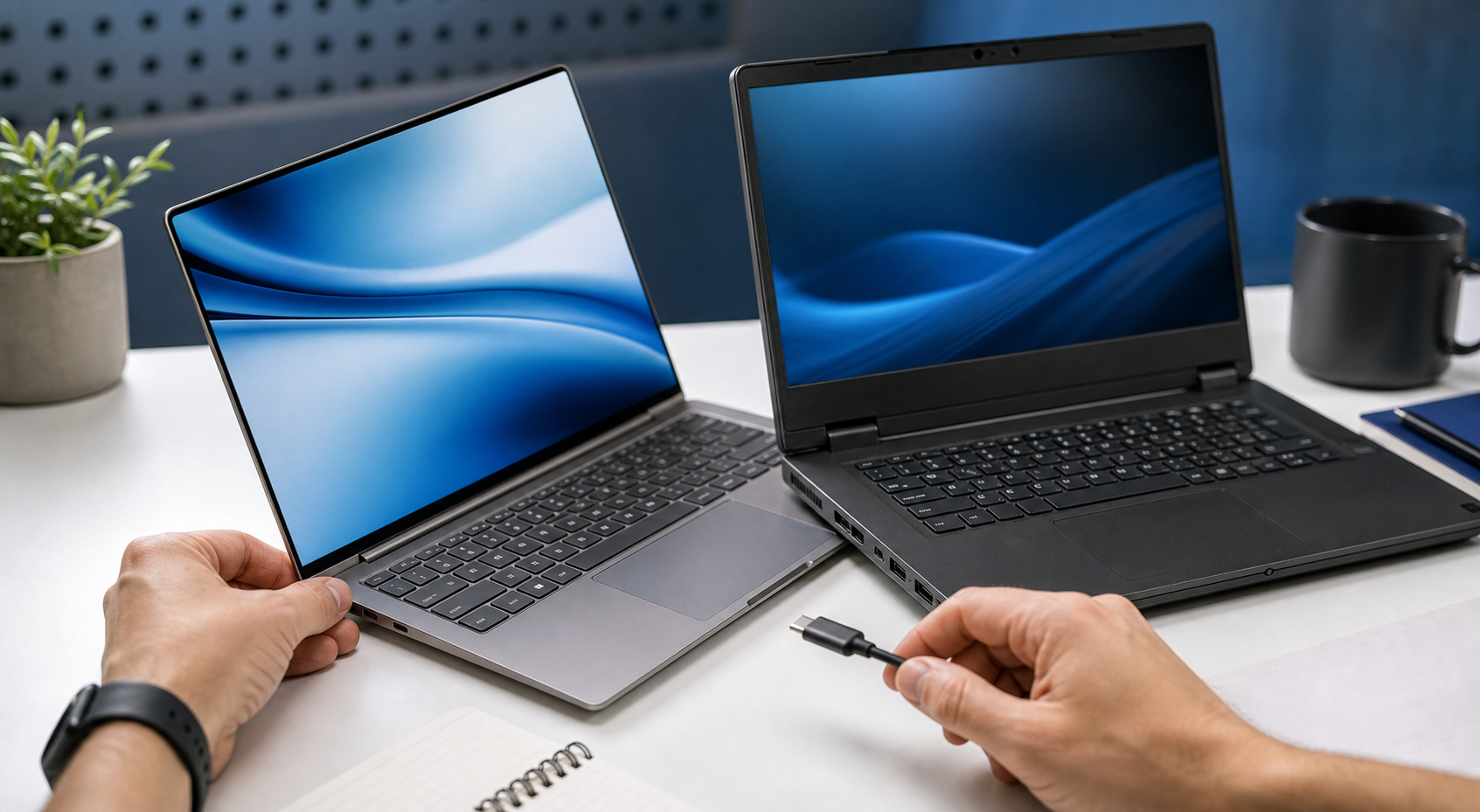
- Ports: Think about what you need to connect. Check for a mix of modern USB-C (look for Thunderbolt support for high speed) and older USB-A ports. An HDMI port is useful for connecting to TVs or external monitors, and a built-in SD card reader is a bonus for photographers. Don't assume a laptop will have all of these; many thin models only have USB-C.
- Build and Weight: A laptop made of aluminium will feel more sturdy and premium than one made of plastic. For portability, look for a weight under 1.5 kg (about 3.3 lbs).
Check Independent Reviews for Battery Life
Manufacturers' battery life claims are almost always based on ideal, low-power test conditions. They rarely reflect how you will actually use the laptop. The only way to know the real-world battery performance is to seek out independent reviews.
Before you buy, search for your chosen model on reputable tech websites. They conduct standardised tests, such as continuous web browsing or video playback over Wi-Fi, which give a much more accurate estimate of how long the battery will last on a typical day. For a laptop you plan to use away from a power outlet, aim for one that reviewers say can achieve at least 8 hours of real-world use.
Quick Reference
| Situation | Look for these specs | Why |
|---|---|---|
| Just for web, email, & Netflix | Chromebook or Core i3/Ryzen 3, 8GB RAM, 256GB SSD | Balances low cost with more than enough power for basic web tasks. |
| University Student | Core i5/Ryzen 5, 8GB-16GB RAM, 512GB SSD, 8hr+ battery | Offers a great mix of performance, storage, and all-day battery life for lectures and research. |
| Office & Remote Work | Core i5/Ryzen 5, 16GB RAM, 512GB SSD, good 1080p webcam | Provides smooth multitasking for many apps and a quality webcam for video meetings. |
| Serious Photo/Video Editor | Core i7/Ryzen 7, 16GB-32GB RAM, 1TB+ SSD, Dedicated GPU | The powerful CPU, ample RAM, and dedicated GPU will speed up rendering and export times. |
| PC Gamer | Core i7/Ryzen 7, 16GB+ RAM, 1TB+ SSD, NVIDIA RTX 4060+ | This combination is crucial for running modern games at high settings with smooth frame rates. |
Common Problems When You Choose A Laptop
- Feeling Overwhelmed by Choice: With hundreds of models, it's easy to get "analysis paralysis."
Solution: Stick rigidly to your budget and your primary use case list from Step 1. This will filter out 90% of the options immediately. Ignore features you know you won't use. - Buying an Underpowered Laptop: You find a fantastic deal, but the laptop is painfully slow from day one.
Solution: The two components that impact day-to-day speed the most are RAM and the storage drive. Never buy a laptop with less than 8GB of RAM or one that uses an old-style Hard Disk Drive (HDD) instead of an SSD. These are the two rules to never break. - Focusing on Only One "Hero" Spec: Some laptops are advertised with one amazing feature, like a 4K screen or a 2TB hard drive, but compromise on everything else, like the CPU or build quality.
Solution: Aim for a balanced system. A fast processor is wasted if it doesn't have enough RAM to work with. A beautiful screen is less useful if the battery dies in three hours. Look for a good balance across all the core components. - Forgetting About the Physical Experience: The specs look great on paper, but the keyboard is mushy, the touchpad is frustrating, and the whole thing feels flimsy.
Solution: This is where reading and watching multiple reviews is vital. Reviewers often comment extensively on the keyboard, build quality, and fan noise-things a spec sheet will never tell you.
Advanced Tips for Choosing A Laptop
- Check for Upgradeability: To save space and cost, many modern thin laptops have their RAM and SSD soldered directly to the motherboard, making them impossible to upgrade later. A laptop with accessible, upgradeable RAM and storage slots can have its life extended by several years. Professional review sites often perform a teardown to check this.
- Understand Screen Colour Gamut: If you're a photographer or designer, colour accuracy is paramount. Look for screens that specify their colour gamut coverage. A screen that covers 100% of the sRGB colour space is good; one that also covers a high percentage of DCI-P3 or Adobe RGB is even better for professional creative work.
- Don't Overlook the Webcam: In an age of remote work and video calls, a laptop's webcam has gone from an afterthought to a key feature. Many laptops still use poor-quality 720p webcams. Look for models that explicitly advertise a 1080p or "Full HD" webcam for a much clearer, more professional image.
- Investigate Thermal Performance: A powerful laptop is useless if it gets too hot and throttles its own performance. In-depth reviews will often include stress tests that show how well the laptop manages heat under a heavy load. Good cooling is especially critical for gaming and creative laptops.
How To Choose A Laptop FAQ
How long should a new laptop last?
You should expect a new laptop to be performant and well-supported for 3 to 5 years. Its physical lifespan could be longer, but after this period, its performance may struggle with newer software and its battery will have degraded. Buying a model with slightly better specs than you need today can help it last longer.
Are touchscreen laptops worth the extra cost?
It depends entirely on the type of laptop. On a 2-in-1 convertible that can fold into a tablet, a touchscreen is essential and very useful. On a traditional clamshell laptop, many people find they rarely use the touchscreen, making it an unnecessary expense that can also add glare to the screen and reduce battery life.
What's more important, a faster CPU or more RAM?
They are both critical for a balanced system. However, for general day-to-day multitasking (like having lots of browser tabs, Spotify, and Word open), moving from 8GB to 16GB of RAM will often provide a more noticeable improvement in smoothness than moving from a Core i5 to a Core i7 processor. For specific, heavy tasks like video rendering, the CPU's power is more important.
Can I use a gaming laptop for university or work?
Yes, absolutely. Gaming laptops are among the most powerful laptops you can buy and can handle any school or office task with ease. The main trade-offs are that they are typically heavier, have shorter battery life, and often have aggressive styling that might not suit a professional environment.
When is the best time of year to buy a laptop in the UK?
The best deals are typically found during major sales events. Keep an eye on prices during the Black Friday period (late November), Boxing Day sales (late December), and the back-to-school season (August-September). New models are also often announced in early spring, which can lead to discounts on the previous year's stock.
Final Checklist for Choosing A Laptop
- I have a clear list of my main tasks.
- I have set a firm budget and will stick to it.
- I have chosen my preferred operating system (Windows, macOS, or ChromeOS).
- The specs meet my minimum needs (e.g., Core i5/Ryzen 5, 8GB+ RAM, 256GB+ SSD).
- The screen size and resolution are right for my use case.
- I have confirmed it has the physical ports I need for my accessories.
- I have read at least two independent, professional reviews for the specific model.
- I have checked the reviewed, real-world battery life, not just the manufacturer's claim.