Is your computer taking ages to start up, open programs, or even just browse the web? A slow computer is a common frustration, but you don't have to put up with it. This guide will walk you through a series of simple, safe, and effective steps to clean up your machine and get it running smoothly again. We'll cover everything from quick software tweaks to essential maintenance, helping you fix a slow computer without needing to be a tech expert.
Fast Answer
- First Step: A simple restart often clears temporary glitches.
- Key Tool: Windows Task Manager or Mac Activity Monitor.
- Biggest Impact: Uninstalling software you no longer use.
- Quick Fix: Close any applications and browser tabs you aren't using.
Before You Start
What You Need
- Your slow Windows or Mac computer.
- Administrator access to your user account (to install/uninstall software).
- An internet connection for updates.
- An external hard drive or cloud storage for backups (highly recommended).
Safety Checks
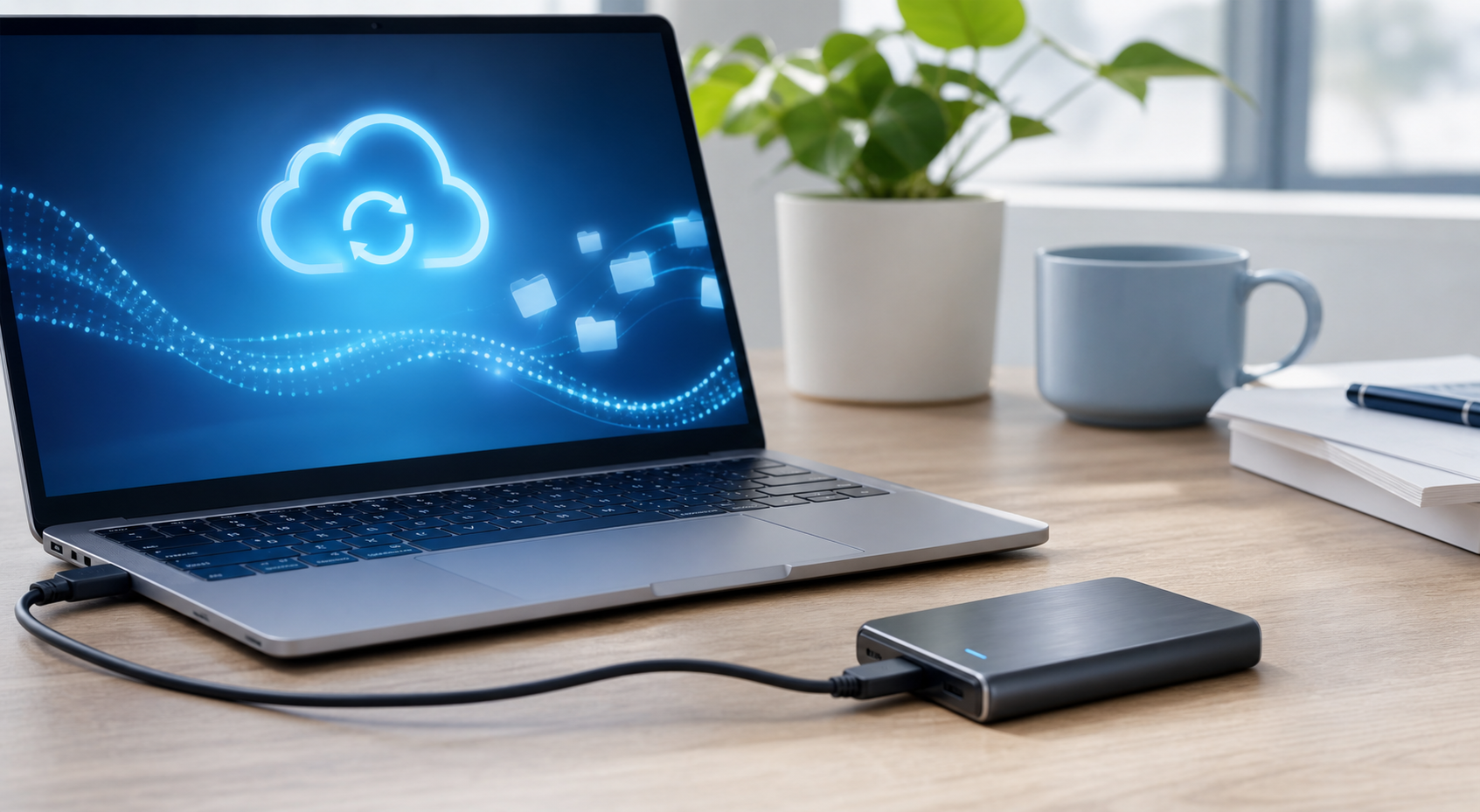
- Back up your data. Before making any significant changes, save copies of your important files (documents, photos, etc.) to an external drive or a cloud service. This is your safety net in case something goes wrong.
- Check for overheating. Place your hand near the computer's fan vents. If it feels unusually hot, the slowness could be due to overheating. Ensure the vents are not blocked by dust, and that the computer has room to breathe.
- Run a virus scan. Before you begin, run a full system scan using your antivirus software. A malware infection is a very common cause of a slow computer.
Step-by-Step Instructions
Restart Your Computer (The Right Way)
This might sound too simple, but it's the most effective first step. Restarting your computer clears its active memory (RAM) and shuts down background processes that may have accumulated over time and are hogging resources. It gives your system a fresh start.
Don't just close the lid of your laptop or put it to sleep. You need to perform a full restart. On Windows, click the Start Menu, then the Power icon, and select Restart. On a Mac, click the Apple menu in the top-left corner and choose Restart.
Find Resource-Hungry Programs
If your computer is slow even after a restart, a specific program might be using more than its fair share of resources (CPU, memory, or disk). You can find the culprit using built-in tools.
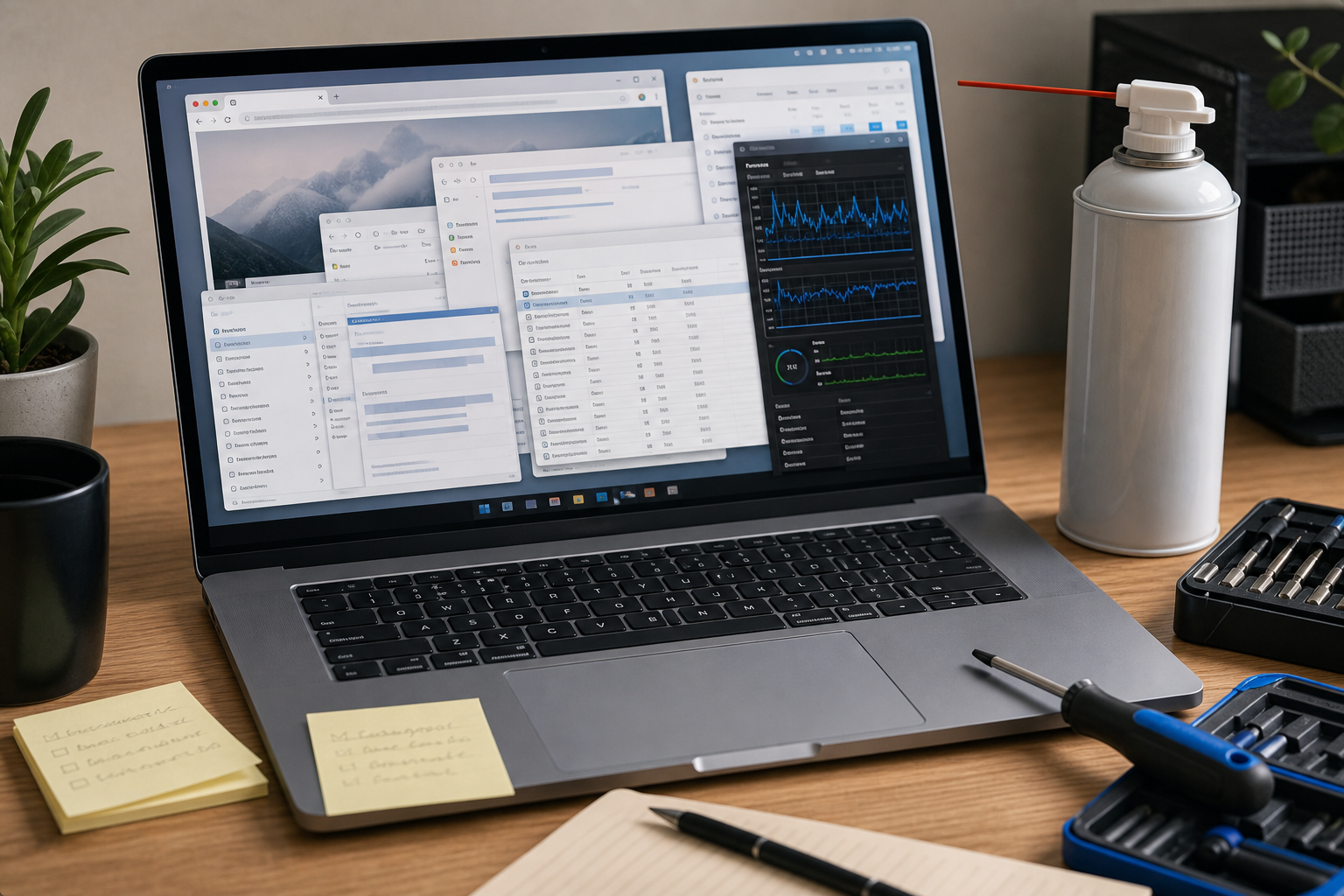
On Windows: Press Ctrl + Shift + Esc to open the Task Manager. Click on the 'Processes' tab. You can click the column headers for 'CPU', 'Memory', and 'Disk' to sort the list and see what's using the most. If you see a non-essential program at the top, you can select it and click End task to close it.
On Mac: Open the Finder, go to 'Applications', then 'Utilities', and open Activity Monitor. Similar to Task Manager, you can click the 'CPU', 'Memory', and 'Disk' tabs to see what's causing a bottleneck. Select a greedy application and click the 'X' button at the top to quit it.
Uninstall Unnecessary Software
Most computers come with pre-installed software (often called "bloatware") that you'll never use. Over time, you also install programs for one-off tasks and then forget about them. These applications take up valuable disk space and can run background services that slow your system down.
On Windows: Go to Settings > Apps > Apps & features. Scroll through the list of installed programs. If you find something you haven't used in months and are sure you don't need, click it and select Uninstall.
On Mac: Open the Finder and go to your 'Applications' folder. To uninstall most apps, you can simply drag their icon to the Trash and then empty it. Some more complex applications have their own uninstaller programs.
Stop Programs from Launching at Startup
A major cause of a slow boot-up time is having too many applications set to launch automatically when you log in. Each one adds to the startup time and continues to use memory and CPU power in the background.
On Windows: Open Task Manager (Ctrl + Shift + Esc) and click the Startup tab. This list shows all programs that run on startup and their impact ('High', 'Medium', 'Low'). If you see a program you don't need immediately upon starting your computer (like Spotify or a game launcher), right-click it and choose Disable.
On Mac: Open System Settings, go to General, and then select Login Items. Under the 'Open at Login' section, you will see a list of apps. Select any you don't need to open automatically and click the minus ('-') button to remove them.
Free Up Disk Space
Your operating system needs free space on its main drive (usually the C: drive on Windows) to function correctly. It uses this space for temporary files, updates, and virtual memory. If your drive is more than 85-90% full, you will notice a significant slowdown.
On Windows: Type "Disk Cleanup" into the Start Menu search bar and run the tool. It will scan your drive and show you files you can safely delete, such as temporary internet files, system error reports, and old update files. Tick the boxes for the items you want to remove and click 'OK'.
On Mac: Click the Apple menu > About This Mac > Storage, then click Manage. This opens a window with recommendations, such as 'Store in iCloud', 'Optimise Storage', and 'Reduce Clutter', which can help you easily find and delete large, unneeded files.
Update Your Operating System and Software
Software updates are not just for new features. They often include critical security patches and performance improvements that can make your system run more efficiently and safely. Running an outdated version of Windows, macOS, or your web browser can cause slowness and compatibility issues.
On Windows: Go to Settings > Windows Update and click Check for updates. Install any available updates and restart your computer if prompted.
On Mac: Open System Settings > General > Software Update. Your Mac will check for updates automatically. If any are available, click 'Update Now'.
Adjust Visual Effects for Better Performance
Modern operating systems use animations and transparent effects to look sleek, but these visuals consume processing power. If your computer is older or struggling, turning off these cosmetic features can free up resources and make the interface feel snappier.
On Windows: In the Start Menu search bar, type "performance" and select Adjust the appearance and performance of Windows. In the dialog box that appears, select the option for Adjust for best performance. This will turn off most animations.
On Mac: Open System Settings > Accessibility > Display. Here you can enable Reduce motion and Reduce transparency to simplify the visual effects.
Quick Reference
| Situation | Use this | Why |
|---|---|---|
| Computer is slow when first turning on. | Manage Startup Programs. | Reduces the number of apps that launch and run in the background from the moment you log in. |
| A specific program is freezing or lagging. | Check Task Manager / Activity Monitor. | Identifies if that app is maxing out your CPU or RAM, suggesting a hardware limitation. |
| Everything feels sluggish, especially opening files. | Free up disk space and empty the Recycle Bin. | A nearly full hard drive is a major bottleneck that slows down the entire system. |
| Web browsing is extremely slow. | Clear browser cache and disable extensions. | Old data and too many add-ons can clog up your web browser and slow down page loading. |
Common Problems
"My computer is still slow after trying everything."
If you've followed all the software steps and seen no improvement, the issue may be with your computer's hardware. Older machines, especially those with traditional spinning hard disk drives (HDDs) or a small amount of RAM (4GB or less), will inevitably struggle with modern software and websites. The problem might not be that your computer is broken, but that its components are no longer powerful enough for your needs.
"I deleted a program and now something else doesn't work."
This can happen if two programs share some components. This is rare, but it highlights the importance of only uninstalling software you are certain you don't need. If this happens, your best bet is to try and reinstall the program that has stopped working. Your backed-up data is your best protection against this kind of issue.
"I can't find the settings mentioned in the guide."
The names and locations of settings can change slightly between different versions of Windows (like Windows 10 vs. Windows 11) or macOS. If you can't find something, use the search bar within the main Settings or System Settings menu. Searching for keywords like "startup", "storage", or "update" will usually take you to the right place.
Advanced Tips
Upgrade Your RAM
RAM (Random Access Memory) is your computer's short-term memory. It's where active programs and files are stored for quick access. If you frequently have many applications or dozens of browser tabs open at once, your computer might be running out of RAM, forcing it to use the much slower hard drive as "virtual memory." Upgrading your RAM (e.g., from 8GB to 16GB) can provide a dramatic performance boost for multitasking. Check your computer model's specifications to see what type of RAM it uses and how much it can support.
Switch to a Solid-State Drive (SSD)
This is often the single most effective hardware upgrade you can make to fix a slow computer. Unlike traditional hard disk drives (HDDs) that use spinning platters, an SSD uses flash memory, similar to a USB stick. They are incredibly fast. Upgrading your main drive to an SSD will make your computer boot up in seconds, launch programs almost instantly, and feel responsive in a way that software tweaks alone cannot achieve.
Reset or Reinstall the Operating System
This is the "nuclear option" and should be a last resort. Over years of use, your operating system can get bogged down with leftover files, broken registry entries, and conflicting software. A full reset reinstalls a clean version of Windows or macOS, wiping the slate clean. This will erase all your files, programs, and settings, so you must have a complete backup of your data before you attempt this. On both Windows and Mac, this option can be found within the system recovery settings.
How To Fix A Slow Computer FAQ
How often should I restart my computer?
For best performance, a full restart at least once every couple of days is a good habit. Simply closing your laptop lid puts it to sleep, which doesn't clear the memory in the same way a restart does.
Will adding more RAM make my computer faster?
It will make it faster at multitasking. If you often run out of memory (check in Task Manager/Activity Monitor), then adding more RAM will provide a significant speed boost. However, if your slowness is caused by a slow processor or old hard drive, more RAM will have a limited effect.
Are "PC cleaner" and "optimiser" programs safe to use?
You should be very cautious. While some reputable tools exist, the market is flooded with programs that are ineffective, unnecessary, or even contain malware. The built-in tools like Windows Disk Cleanup and macOS Storage Management are generally safer and sufficient for most users.
Why is my internet slow, but not my computer?
This is a separate issue. If your computer runs programs quickly but web pages load slowly, the problem lies with your internet connection. Try restarting your Wi-Fi router, moving closer to it for a better signal, or contacting your internet service provider to check for outages in your area.
Final Checklist
- Back up all important personal files.
- Perform a full restart of the computer.
- Close any applications and browser tabs not in active use.
- Check Task Manager or Activity Monitor for resource-hogging processes.
- Uninstall any software you no longer need or use.
- Disable unnecessary programs from launching at startup.
- Free up at least 15-20% of the space on your main hard drive.
- Run a complete malware and virus scan.
- Install all available updates for your operating system and web browser.