Losing your important files, from family photos to work documents, can be a disaster. A hard drive crash, a stolen laptop, or a nasty computer virus could wipe them out forever. This guide explains why backing up your computer is essential and shows you exactly how to do it. We'll walk through the easiest methods using tools already built into your Windows PC or Apple Mac, ensuring your digital life is safe and secure.
Fast Answer
- Easiest method: Use an external hard drive with your computer's built-in software.
- Windows tool: File History
- Mac tool: Time Machine
Before You Start
Preparing correctly is the key to a successful backup. Taking a few minutes to check these points will save you time and prevent common frustrations later on.
What You Need
- A backup destination: This is where your files will be copied to. The most common choice is an external hard drive. As a rule of thumb, get one that has at least twice the storage capacity of your computer's main drive. For example, if your laptop has a 512GB hard drive, get at least a 1TB external drive.
- A reliable power source: For laptops, make sure it's plugged into the mains during the first backup. You don't want the battery dying halfway through. If using an external drive that needs its own power, ensure it's also plugged in securely.
- (Optional) A cloud backup service subscription: If you prefer backing up over the internet instead of using a physical drive, you'll need an account with a service. We'll cover the pros and cons of this later.
Safety, Timing, and Context Checks
- Decide what to back up: Are you backing up everything, or just your most critical folders like 'Documents' and 'Photos'? The built-in tools we'll cover are great at automatically selecting these important user files for you.
- Clean up first: A backup is a copy of your current files. Before you start, it's a good idea to run a full virus and malware scan to avoid backing up any hidden problems.
- Plan for the first backup: The very first time you back up, your computer has to copy everything you've selected. This can take several hours depending on how much data you have. It's best to start it in the evening and let it run overnight. After the first one, future backups are much faster because they only copy new or changed files.
Step-by-Step Instructions
We'll cover the most reliable and user-friendly method first: using an external hard drive. The process is slightly different for Windows and macOS, so follow the steps for your type of computer.
Choose and Connect Your External Drive
Your main choice for an external drive is between a traditional Hard Disk Drive (HDD) and a Solid-State Drive (SSD). HDDs offer more storage for a lower price, making them a great value choice for backups. SSDs are much faster, more durable, but cost more per gigabyte. For most backup purposes, a reliable HDD is perfectly fine.
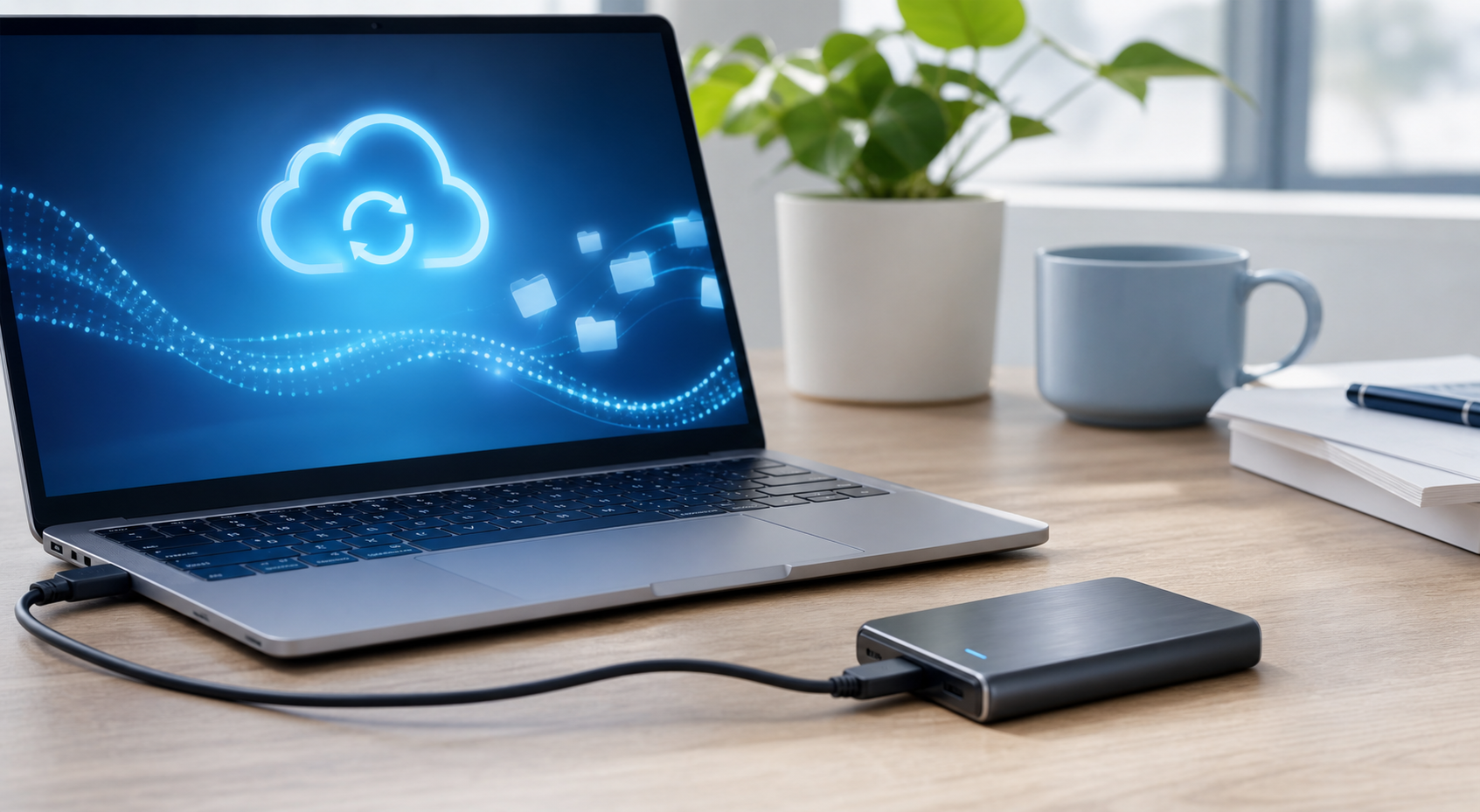
Once you have your drive, simply plug it into a spare USB port on your computer. Your computer should recognise it and it may appear as a new drive letter (like D: or E:) in Windows or as a new icon on the desktop on a Mac.
Set Up File History (For Windows 10 and 11)
File History is Microsoft's built-in backup solution. It automatically saves copies of files from your main user folders (Desktop, Documents, Downloads, Music, Pictures, Videos). It's simple to set up.
- Open the Settings app (you can press the Windows key + I).
- Go to Update & Security (on Windows 10) or System > Storage > Advanced storage settings (on Windows 11).
- Find and click on Backup.
- Under 'Back up using File History', click Add a drive. A list of available drives will appear.
- Select your connected external hard drive from the list.
That's it. Windows will automatically turn on File History and begin the first backup. By default, it will save copies of your files every hour, as long as the drive is connected.
Set Up Time Machine (For macOS)
Time Machine is Apple's excellent, set-and-forget backup software that comes with every Mac. It creates a complete backup of your computer, including your personal files, apps, and system settings.
- Open System Settings (from the Apple menu in the top-left corner of your screen).
- Click on General in the sidebar, then click Time Machine on the right.
- Click the Add Backup Disk button.
- Choose your external hard drive from the list and click Set Up Disk.
You may be prompted to erase the disk to prepare it for Time Machine. This is normal, but remember it will delete any existing data on the drive. You'll also see an option to 'Encrypt Backup'. We highly recommend you enable this for security. Once set up, Time Machine will start its first backup automatically and then continue to back up hourly as long as the drive is connected.
Consider Using Cloud Storage as a Secondary Backup
Using a service like OneDrive (from Microsoft), Google Drive, or Dropbox can be a good way to keep a second copy of your most vital files off-site. These services work by creating a special folder on your computer. Anything you place in that folder is automatically synced to the internet and your other devices.
This is not a true, full backup like Time Machine or File History. It doesn't save old versions of files in the same way, and it doesn't back up your system settings. If you accidentally delete a synced file from your computer, it will also be deleted from the cloud. However, for protecting a handful of crucial documents against fire or theft of your local equipment, it's an excellent and often free addition to your main external drive backup.
Verify Your Backup is Working
A backup you haven't tested is not a backup you can trust. After the first backup has completed, it's vital to check that it was successful. Don't just assume it worked.
- For File History (Windows): Go back to the 'Backup options' screen. It should show the total size of your backup and the date and time of the 'Last backup'. You can also try restoring a file by clicking 'Restore files from a current backup' at the bottom of this screen.
- For Time Machine (Mac): Open the Time Machine settings. It will show the time of the 'Oldest backup' and 'Latest backup'. You can also click the Time Machine icon in the menu bar and select 'Enter Time Machine' to see a visual history of your backups and test restoring a file.
- For Cloud Storage: Open a web browser and log in to your Google Drive or OneDrive account. Check if the files you saved to the special folder on your computer are visible online.
Make a habit of checking your backup status at least once a month. It only takes a minute and gives you peace of mind that your data is truly protected.
Quick Reference
| Situation | Use this | Why |
|---|---|---|
| I want the easiest and cheapest full computer backup. | External Drive + Built-in Tool (File History/Time Machine) | Low one-time cost for the drive, software is free and automates everything. No internet needed to back up or restore. |
| I only need to protect a few very important folders. | Cloud Storage Sync (OneDrive, Google Drive, Dropbox) | Files are accessible from any device with an internet connection. Often has a free starting tier for small amounts of data. |
| I want maximum protection against disaster like fire or theft. | The 3-2-1 Strategy (See Advanced Tips) | Combines a local backup (for speed) and an off-site backup (for disaster recovery), giving you the best of both worlds. |
Common Problems When You Backup Your Computer
Even with simple tools, you can sometimes run into issues. Here are fixes for the most common problems people face when they backup their computer.
My backup is taking a very long time.
The first backup always takes the longest because it's copying every single file. It's normal for this to take several hours. Let it run overnight. Subsequent backups will be much faster as they only copy files that have changed since the last run. If all backups are slow, check that your external drive is plugged into a fast USB 3.0 port (they are often blue) rather than an older, slower USB 2.0 port.
My computer can't find my external drive.
First, check the basics: is the cable securely plugged in at both ends? Try a different USB port on your computer. If the drive has its own power cable, make sure it's plugged in and switched on. If it's still not showing up, you may need to check your computer's disk management tool (called 'Disk Management' on Windows, 'Disk Utility' on Mac) to see if the computer recognises the hardware at all. The drive may need to be initialised or formatted before it can be used.
I'm running out of space on my backup drive.
Both Time Machine and File History are designed to handle this automatically. When the drive gets full, they will start deleting the oldest backup versions to make space for new ones. This means you'll always have the most recent backups, but you might lose the ability to restore a file from six months ago. To free up space, you can also go into the backup settings and exclude large folders you don't need to protect, such as your Downloads folder or folders containing temporary video game files.
My internet is very slow while my cloud backup is running.
Uploading large amounts of data can saturate your internet connection. Nearly all cloud backup and sync applications have settings to control this. Look for an option called 'bandwidth throttling' or 'network limits' in the app's preferences. You can set a limit on the upload speed so it doesn't interfere with your normal web browsing or streaming. Many tools also let you schedule backups to only run during specific hours, such as overnight when you aren't using the computer.
Advanced Tips for how to backup your computer
Once you're comfortable with a basic backup, you might want to increase your data's security. These advanced strategies offer professional-grade protection.
Embrace the 3-2-1 Backup Rule
This is the gold standard for data safety, used by IT professionals everywhere. The rule is simple:
- Have at least THREE total copies of your data.
- Store the copies on TWO different types of media.
- Keep ONE of those copies off-site.
A practical example for home users would be: 1. The original files on your computer's internal drive. 2. A full backup on an external hard drive you keep at home. 3. A second backup to a cloud service or another external drive that you store at your office or a relative's house. This strategy protects you from almost any conceivable disaster, from a simple hard drive failure to a house fire.
Create a Full Disk Image
File History and the standard Time Machine backup are focused on your personal files. A 'disk image' or 'clone' is different: it's an exact, bit-for-bit copy of your entire hard drive, including Windows or macOS itself, all your settings, and all your installed programs. The advantage is a much faster recovery. If your main drive fails, you can use the disk image to restore your computer to the exact state it was in, without having to reinstall the operating system and all your apps one by one. This requires specialised software like Acronis True Image, Macrium Reflect (Windows), or Carbon Copy Cloner (Mac).
Consider a Network Attached Storage (NAS) Device
A NAS is like a private cloud in your own home. It's a small box with one or more hard drives inside that connects directly to your home Wi-Fi router. All the computers in your home can then back up to this central device over the network automatically. It's more expensive and complex to set up initially, but it's a fantastic solution for families with multiple computers to protect.
How To Backup Your Computer FAQ
How often should I back up my computer?
What's the real difference between a backup and a sync?
Can I use a simple USB flash drive to back up my whole computer?
Do I need to back up my programs and applications?
Final Checklist for Backing Up Your Computer
- Decide which data on your computer is irreplaceable.
- Choose your primary backup destination: an external drive is recommended.
- Purchase an external drive with at least twice the storage capacity of the data you need to protect.
- Perform a full antivirus scan on your computer before starting.
- Connect the drive and configure your backup software (File History on Windows, Time Machine on macOS).
- Let the first complete backup run, preferably overnight.
- Verify the backup was successful by checking the software's status and trying to view a backed-up file.
- Leave the drive connected for automatic, ongoing backups, or connect it at least weekly.
- Set a calendar reminder to check your backup health once a month.
- For ultimate security, consider adding an off-site copy (cloud or a second drive) to follow the 3-2-1 rule.