Keeping your computer safe from viruses and other online threats is easier than you might think. This guide walks you through the essential steps for robust computer virus prevention, from setting up basic security software to spotting and avoiding common scams. Following these instructions will help protect your personal information, prevent your device from slowing down, and give you peace of mind when browsing, shopping, or working online. It's about building good habits, not becoming a tech expert.
Fast Answer
- Key Action: Install and run reputable antivirus software.
- Critical Habit: Keep your operating system and apps updated.
- Best Defence: Be suspicious of unexpected emails and links.
Before You Start
- Administrator access: You will need the main password for your computer to install software and change security settings.
- A reliable internet connection: This is necessary for downloading software, getting updates, and running cloud-based scans.
- About 30-60 minutes: Set aside some time for the initial setup, including software installation and your first full system scan.
Step-by-Step Instructions
Install and Configure Antivirus Software
Your first line of defence is a good antivirus program. This software actively scans files, apps, and emails for known threats and can block or remove them before they cause harm. Modern operating systems like Windows 10 and 11 come with a capable tool called Microsoft Defender built-in. For most users, this is an excellent starting point.
To ensure it's running, search for "Windows Security" in your Start Menu. Check that "Virus & threat protection" is on and showing a green tick. If you choose to install a third-party antivirus suite, it will typically disable Defender to avoid conflicts. Whether you use the built-in option or another program, make sure its "real-time protection" feature is always enabled. This allows it to monitor activity constantly, not just when you run a manual scan.
Enable and Check Your Firewall
Think of a firewall as a digital bouncer for your computer's internet connection. It monitors all the data coming in and going out, blocking any suspicious or unauthorised traffic. This prevents hackers and malicious programs from gaining access to your system through the network. Both Windows and macOS have powerful, built-in firewalls that are usually enabled by default.
It's worth checking to make sure it's active. On Windows, go to the "Windows Security" app and select "Firewall & network protection". You should see that the firewall is on for your active network type (usually "Private" or "Public"). On a Mac, go to System Settings > Network > Firewall and ensure the toggle is switched on. There is rarely a need to change the advanced settings; the default configuration is effective for most home users.
Turn On Automatic Software Updates
This is one of the most critical steps in computer virus prevention. Software developers frequently release updates not just to add new features, but to fix security holes that have been discovered. Viruses and malware are often designed to exploit these specific weaknesses in outdated software. By keeping your operating system (Windows, macOS), web browser (Chrome, Firefox, Edge), and other applications up-to-date, you close these doors before attackers can use them.
The easiest way to do this is to enable automatic updates. In Windows, go to Settings > Update & Security > Windows Update, and check that updates are set to install automatically. For your apps, check their individual settings menus for an "auto-update" option. For software from the Microsoft Store or Mac App Store, updates are typically handled automatically by the store itself.
Use Strong and Unique Passwords
Weak or reused passwords are a common entry point for cybercriminals. If an attacker guesses the password for your email account, they can use it to reset the passwords for many of your other online services. A strong password is long (at least 12 characters) and includes a mix of uppercase letters, lowercase letters, numbers, and symbols.
More importantly, use a different password for every important account. Remembering dozens of complex passwords is impossible, so the best solution is to use a password manager. These are secure apps that generate and store strong, unique passwords for all your sites. You only need to remember one master password to unlock the manager. Many reputable antivirus suites include a password manager, and there are excellent standalone options available too.
Be Cautious with Emails and Attachments
Email is the most common delivery method for viruses and phishing scams. Phishing is when an attacker sends a fake email pretending to be from a legitimate company (like your bank, a delivery service, or a tech company) to trick you into giving up personal information or downloading a virus.
Be suspicious of any email that creates a sense of urgency, like "Your Account Will Be Closed" or "Suspicious Login Detected". Never open attachments you weren't expecting, even if they seem to be from someone you know. Their email account could have been hacked. Common dangerous file types include .exe, .zip, .scr, and even Word or Excel documents with "macros" enabled. If in doubt, delete the email or contact the sender through a different method (like a known phone number) to verify.
Think Before You Click on Links
Just like with email attachments, malicious links are a primary tool for criminals. These links can take you to fake websites that steal your login details or to sites that automatically try to download malware onto your computer. These links can appear in emails, social media messages, text messages (a practice called "smishing"), and even on legitimate websites that have been compromised.
Before clicking a link, hover your mouse cursor over it. Your browser will usually show the actual web address in the bottom-left corner of the window. Check if it matches where you expect to go. Look for subtle misspellings (e.g., "paypa1.com" instead of "paypal.com"). If you are on a phone and cannot hover, be extra cautious. If an email asks you to log into an account, it's safer to type the website address directly into your browser yourself rather than clicking the link.
Back Up Your Important Files Regularly
Sometimes, despite all your best efforts, something goes wrong. A particularly nasty type of malware called ransomware can encrypt all your personal files, making them inaccessible until you pay a fee to the attackers. A reliable backup is your ultimate safety net against this and other data disasters like hard drive failure.
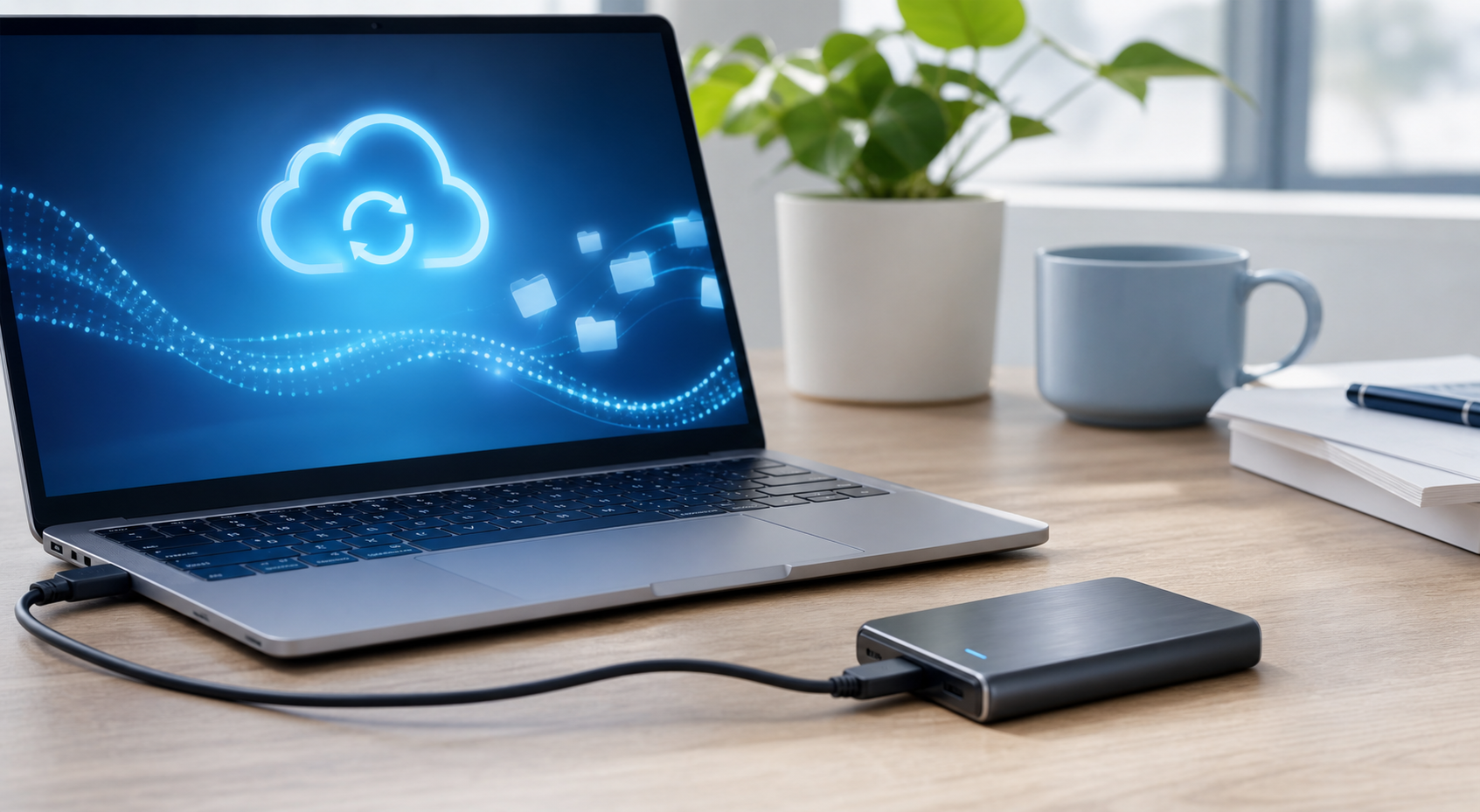
You can back up your files to an external hard drive or use a cloud backup service. The key is to do it regularly and automatically. Windows includes a feature called "File History," and macOS has "Time Machine," both of which can automate backups to an external drive. Cloud services can sync your important folders in the background. Aim for a 3-2-1 backup strategy: have at least three copies of your data, on two different types of media, with one copy stored off-site (like in the cloud or an external drive you keep at a different location).
Quick Reference: Spotting a Scam
| Situation | Check This | Why It Matters |
|---|---|---|
| An urgent email from your "bank" or "HMRC" | The sender's full email address | Scammers often use addresses that look real at a glance but are fake, like "[email protected]". |
| A link to "claim your prize" or "verify your account" | Hover over the link without clicking | The pop-up text will show the link's true destination, which is often a random, suspicious-looking URL. |
| An unexpected invoice or order confirmation attachment | The file type of the attachment | Invoices should be PDFs. Be very wary of attachments that are .zip, .exe, or Word/Excel files asking you to "Enable Content". |
| A message with poor grammar or spelling | The overall quality of the writing | Legitimate companies usually have professional communications. Obvious mistakes are a major red flag for a scam. |
Common Problems When You Practise Computer Virus Prevention
My computer is slow after installing antivirus software.
This is a common concern. Antivirus software needs to use some of your computer's resources (CPU and RAM) to monitor for threats in real-time. On older or less powerful machines, this can sometimes be noticeable. To minimise the impact, ensure you only have one antivirus program installed and active. Running two at once can cause major slowdowns and conflicts. Also, as mentioned earlier, schedule deep scans for times when you are not actively using the computer.
I get too many update notifications.
While they can feel like a nuisance, each notification represents a potential security hole being patched. It's far better to deal with a quick update than a virus infection. Most systems allow you to set "active hours" (e.g., 9 am to 5 pm) during which they won't automatically restart. This lets you get updates installed without interrupting your work. Resisting the "remind me tomorrow" button is a key part of good security hygiene.
I think I clicked a bad link by accident. What should I do?
First, don't panic. If you just clicked a link but didn't enter any information (like a password) or download/run any files, you may be okay. Your browser and antivirus may have blocked anything malicious. The safest course of action is to immediately disconnect your computer from the internet (turn off Wi-Fi or unplug the network cable). Then, run a full, deep scan with your antivirus software. Once the scan is complete and shows no threats, you can reconnect to the internet. It's also a good idea to change the password for any account related to the scam (e.g., if the link pretended to be from Facebook, change your Facebook password).
Advanced Tips for Computer Virus Prevention
- Use a Standard User Account: For your everyday tasks, use a "Standard" or "User" account instead of an "Administrator" account. This limits the damage malware can do, as it won't have permission to install software or make system-wide changes without you entering the administrator password.
- Secure Your Wi-Fi Network: Ensure your home Wi-Fi network uses strong WPA2 or WPA3 encryption and has a strong, unique password. An unsecured network can be an open door for anyone nearby to access your devices.
- Use a VPN on Public Wi-Fi: When using Wi-Fi in a cafe, airport, or hotel, your data can be visible to others on the same network. A Virtual Private Network (VPN) encrypts your connection, making it unreadable to eavesdroppers and protecting your logins and personal information.
- Manage Browser Permissions: Modern browsers ask for permission before a website can do things like access your location, show notifications, or use your camera. Be mindful of these requests. In your browser's settings, you can review and revoke permissions for sites you no longer trust.
Computer Virus Prevention FAQ
Is free antivirus software good enough?
For many people, yes. The built-in Microsoft Defender is highly rated by independent testing labs and provides solid, baseline protection. Many reputable third-party companies also offer free versions of their software. These are generally effective at blocking major threats but may lack advanced features found in paid versions, such as enhanced ransomware protection, a firewall, or a VPN. For the average home user, a good free option is a huge step up from nothing at all.
Do I need antivirus for my Mac?
While Macs are targeted by viruses less frequently than Windows PCs, they are not immune. The threat of malware on macOS is real and growing. Macs have strong built-in security features, but a dedicated anti-malware program can add an important extra layer of protection, particularly against adware and phishing attacks that are platform-agnostic. It is a recommended precaution.
How often should I scan my computer for viruses?
With modern antivirus software that includes real-time protection, your computer is being scanned constantly. However, it's still good practice to run a "full scan" or "deep scan" periodically, as this checks every single file on your system. A good rule of thumb is to schedule a full scan to run once per week automatically.
What is the difference between a virus, malware, and spyware?
Malware is the general, umbrella term for any type of "malicious software". A virus is a specific type of malware that attaches itself to another program and spreads when that program is run. Spyware is another type of malware that secretly gathers information about you, such as your browsing habits or keystrokes, and sends it to a third party. Other common types of malware include ransomware, adware, and trojans.
Final Checklist for Computer Virus Prevention
- Antivirus is Active: Confirm your antivirus program's real-time protection is enabled.
- Firewall is On: Check that your operating system's firewall is turned on for your active network.
- Updates are Automatic: Ensure your OS and key applications are set to update automatically.
- Backups are Scheduled: Set up an automatic backup routine for your important files to an external drive or cloud service.
- Passwords are Strong: Use a password manager to create and store unique, complex passwords for each account.
- 2FA is Enabled: Turn on two-factor authentication for your critical accounts like email and banking.
- Stay Vigilant: Remember to be cautious about unexpected links, attachments, and pop-up ads.